
Introducing VR Learning Mode: Let Your Teacher Lead the Way
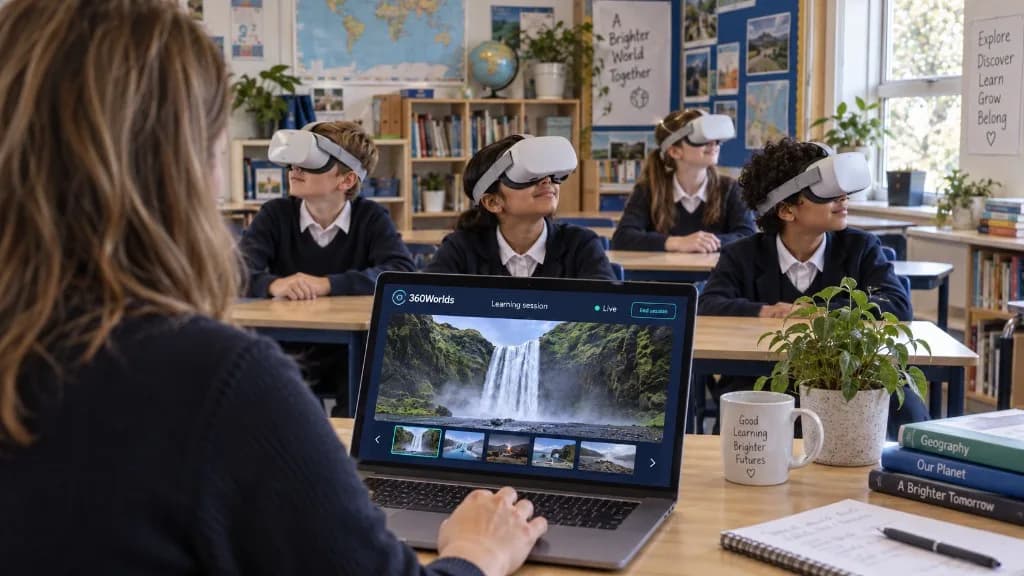
Teacher-controlled sessions. Shared discoveries. VR Learning Mode lets teachers lead a live Learning Session from their laptop, so pupils explore the same world together in the classroom or online.
Key Takeaways
- Teachers start a live Learning Session from their laptop and choose which world the class explores.
- Pupils on screens and tablets follow the teacher’s selected scene, so the class stays together.
- Pupils in VR headsets can still look around freely inside that scene.
- The same session works in a classroom or alongside an online video lesson.
- A waterfall visit is a simple way to try observation, vocabulary and comparison questions.
Teacher-controlled sessions. Shared discoveries.
An immersive world gives pupils plenty to notice, question and discuss. Whether teaching in a classroom or delivering a lesson online, teachers also need a way to bring everyone together around the same scene and decide when to move on.
That is why we have introduced VR Learning Mode in 360Worlds, bringing teacher controls and live Learning Sessions together to support guided exploration in the classroom and online.
From their laptop, teachers can choose a world, start a live Learning Session and guide the lesson. On screens and tablets, pupils follow the teacher’s selected scene, making it easier to build a shared experience around the lesson. Pupils using VR headsets retain the freedom to look around naturally. If you are deciding what hardware you need, do you need a VR headset? covers what works on each device.
Explore together, wherever pupils are learning
Imagine taking your class to a waterfall. You want everyone to spend a moment observing the landscape, identifying features and thinking about how water has shaped the surroundings.
With a Learning Session, you choose the scene the class explores. You can stay there while pupils share observations, introduce new vocabulary or ask questions, then move to another scene when you are ready.
The teacher sets the pace, giving each location a clear place in the lesson.
This creates space for the parts of teaching that turn an interesting view into a learning opportunity: a carefully chosen question, an explanation at the right moment, or a discussion sparked by something a pupil has noticed. The same idea sits behind how to plan a virtual field trip: the world is the setting, and the questions are the lesson.
How VR Learning Mode works
Starting a session takes a few steps:
- Choose a world from the Learning Session panel.
- Select “Start learning session” to make the session live.
- Share the pupil join link with pupils using screens or tablets. Pupils already on your class roster can also use the Join button on the worlds or class join page.
- Open the host view to lead the class through your selected world.
- End the session from the session panel when you have finished.
Once the session is live, the panel shows the active world and keeps the host view, join link and session controls together. New to school accounts? The getting started guide walks through teacher setup, classes and how pupils join.
Use screens and tablets alongside immersive exploration
Pupils do not need a VR headset to join a Learning Session. The pupil link supports participation on screens and tablets, with pupils following the teacher’s selected scene.
For headset users, free look-around remains part of the experience. Pupils can turn their heads and look around naturally, taking in the surroundings from their own perspective. That split — a shared scene for the class, and free looking for anyone in a headset — is the practical version of the delivery models in VR in the classroom.
Bring immersive exploration into online lessons
VR Learning Mode also works when pupils are joining a lesson remotely. Teachers can lead a Learning Session from their laptop while pupils take part from different locations.
During your usual online video lesson, share the pupil join link with learners using screens or tablets, then guide them through the selected world. Their scenes follow your selection, giving everyone a shared visual reference as you explain, ask questions and discuss what they notice.
Use your existing video-call platform for conversation alongside the 360Worlds session. You can spend time on a scene, invite pupils to share an observation, then move on when the group is ready. The same waterfall activity can become a shared virtual visit for pupils learning from home.
A classroom example: exploring waterfalls
One way to try the new feature is with The Most Beautiful Waterfalls.
Begin with a simple observation task: ask pupils to spend a moment looking closely before anyone speaks. Then invite them to describe what they notice about the water, rocks and surrounding vegetation.
You could use questions such as:
- Which features stand out first?
- What clues suggest that water has changed this landscape?
- How would you describe this place to someone who cannot see it?
- What would you like to investigate after visiting this scene?
Stay with the scene while the class discusses its ideas. When you move to another location, ask pupils to compare the two: what has changed, and what looks similar?
The same visit could provide a starting point for a geography discussion, a vocabulary activity or a piece of descriptive writing. You choose the learning objective and adapt the questions to your pupils.
Lead the learning, in the classroom or online
VR Learning Mode gives educators a practical way to organise shared exploration in 360Worlds through teacher-controlled Learning Sessions, whether pupils are together in a classroom or joining an online lesson.
You choose where the lesson goes, how long to spend in each scene and when to bring the class into discussion. Pupils have a shared setting to refer to, while you guide the questions and activities around it.
Ready to lead your first session? Open your 360Worlds teacher account, choose a world and select “Start learning session”.
Frequently Asked Questions

The 360Worlds Team
Immersive Learning Specialists
We build immersive educational worlds that let learners explore history, science, geography, space and nature through interactive 360° experiences.
Related Articles
VR Headset Prices and the Future of Immersive Learning
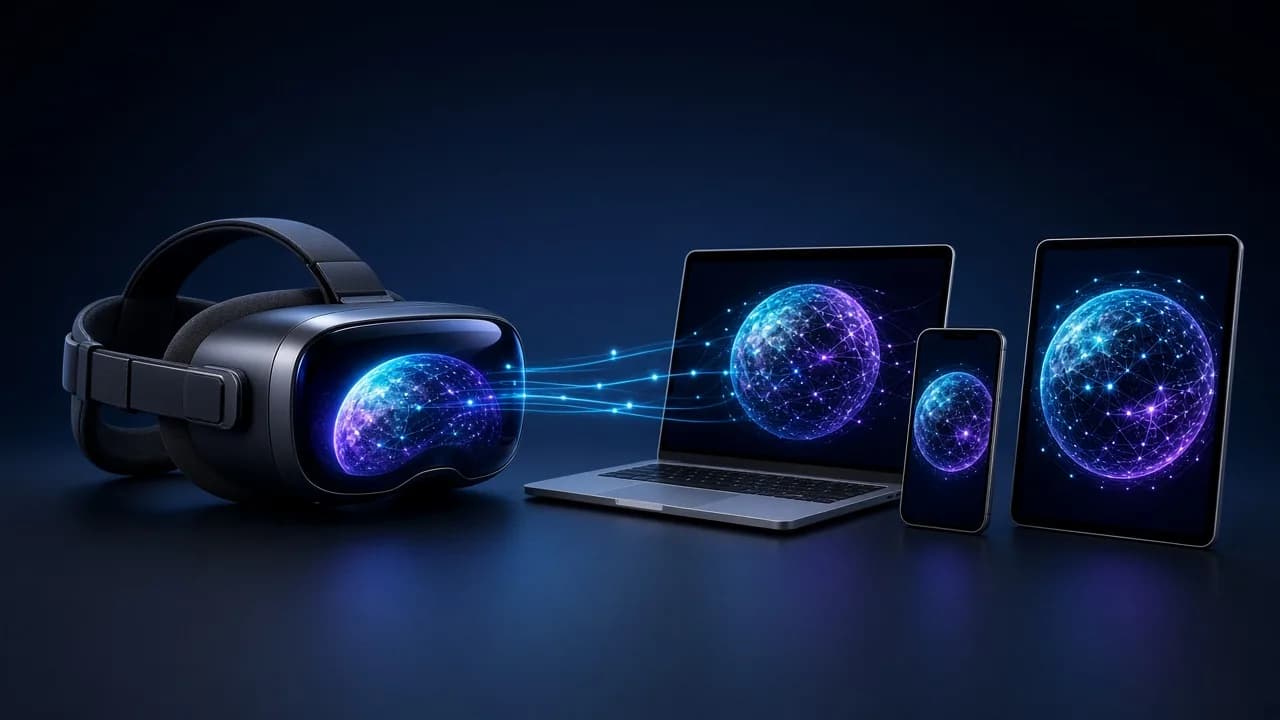
Valve's new Steam Frame has put VR headset prices back in the spotlight. Here's why immersive learning shouldn't wait for a £1,000 headset — and how 360Worlds lets schools and families start on the devices they already own.
VR in the Classroom: A Complete Practical Guide for Schools
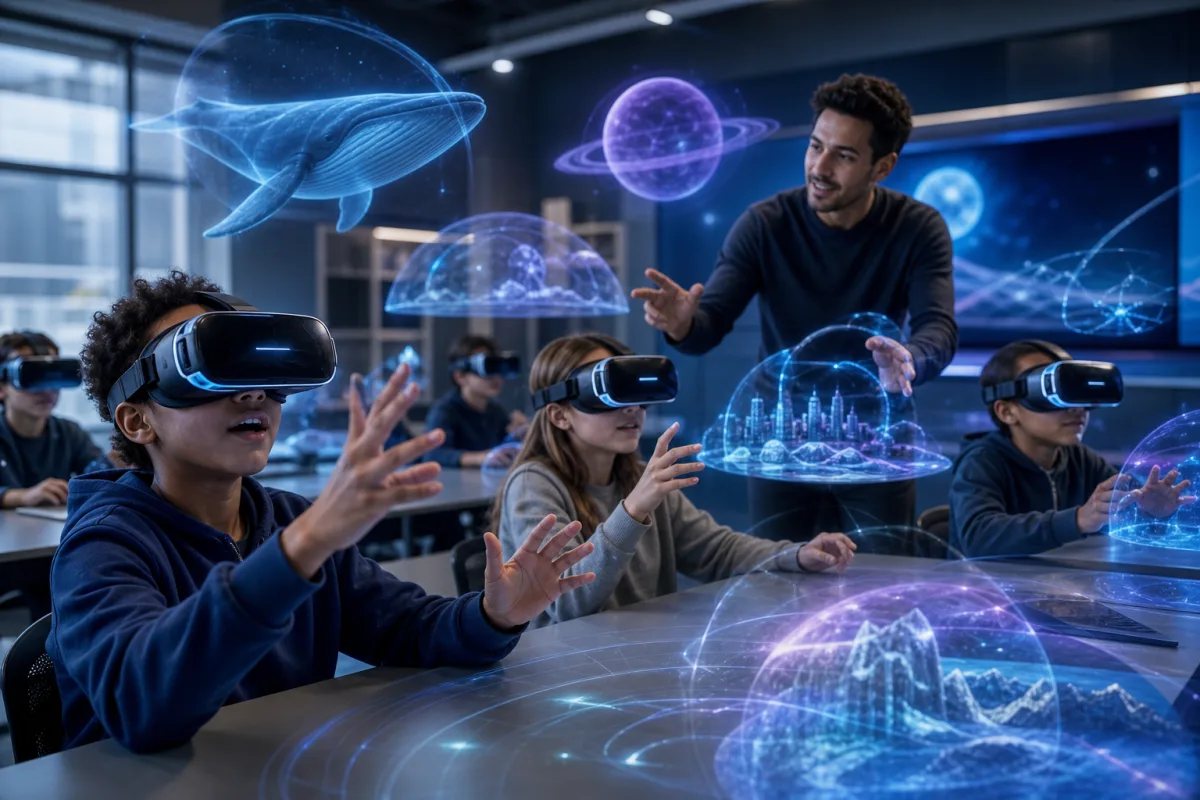
Virtual reality in schools sounds daunting and expensive — it doesn't have to be. A practical guide to using VR and 360° worlds in the classroom, from no-headset starts to full headset rollouts, with the benefits, delivery models and safety you need.

Do You Need a VR Headset to Use 360Worlds? The Complete Answer
Short answer: no. 360Worlds runs in any web browser, on any device. Here's exactly what works with and without a headset, what a headset adds, when it's worth it, and why browser-based immersive learning is so much easier for schools.