
Getting started
Set up your Family or Education accounts
A quick, step-by-step guide to getting your household, classroom or whole school exploring 360Worlds — on screens, tablets, phones and VR & XR headsets.
For households
Set up a Family account
Share every available world with up to six people in one household.
- 1
Choose the Family plan
Pick Family on the pricing page and complete secure annual checkout. One subscription covers up to six people in a single household.
- 2
Sign in on your devices
Sign in to 360Worlds on any computer, tablet, phone or VR headset. The same household account works everywhere, so you can explore on the TV, on the sofa or in a headset.
- 3
Share with your household
Give your household login to the family members you want to include — up to six people. Everyone gets full access to every available world. (Separate per-person profiles are coming soon.)
- 4
Start exploring together
Open the Worlds library and jump into any experience. Narrated, multilingual audio and interactive hotspots work on-screen and in VR.
For teachers & schools
How pupils join a class
Solo Teacher and School classes both work the same way for pupils: a code, a link or a QR — no pupil emails or accounts needed.
QR code
Best for phones and tablets. Pupils point their camera at the code to open the join page instantly. Not suitable for VR headsets.
Share link
A link with the class code already filled in. Open it on each device before the lesson — pupils only add a nickname. Works in any browser.
Class code
A short code (e.g. ZWH-ASEN) pupils type at the join page. The reliable fallback for VR headsets, where scanning and pasting links is awkward.
For teachers, tutors & educators
Set up a Solo Teacher account
One educator, up to 30 learners — ideal for a single classroom or online teaching.
- 1
Choose Solo Teacher
Select the Solo Teacher plan and complete checkout. It includes one educator account plus up to 30 learners, with commercial classroom and online-teaching use.
- 2
Open your Teacher dashboard
Go to the Teacher dashboard (https://explore.360worlds.com/education) — or tap "Teacher dashboard" in your Worlds library. Create your classroom, then add a class such as "Year 5B". Each class gets its own join code.
- 3
Share the class with pupils
Every class shows three ways to join, matched to the device: a QR code for phones and tablets, a share link with the code already filled in, and the short class code to type by hand.
- 4
Pupils join with a nickname
Pupils open https://explore.360worlds.com/join, enter the class code (or scan/open your link) and pick a nickname. No pupil emails or accounts are needed. Up to 30 learners can be active at once.
- 5
Assign quizzes and see results
Publish quizzes, assign them to a class and share the pupil quiz link. Basic learner quiz results appear back in your dashboard.
For schools
Set up a School account
One named school per licence, sized by total pupils enrolled. All teachers and pupils at that school can use 360Worlds. Larger schools, multi-campus schools, trusts or groups: contact us.
- 1
Set up your school licence
Choose the licence that matches the total number of pupils enrolled at your named school: Small School (up to 500), School (501–1,500) or Large School (1,501–3,000). All teachers and pupils at that school can use 360Worlds. One licence does not cover another school, campus, or school in a trust or group. Contact us for purchase orders, invoicing, or a quote for larger schools, multi-campus schools, trusts or groups.
- 2
Owner creates the school
The account owner opens the Teacher dashboard (https://explore.360worlds.com/education) and sets up the named school. This unlocks the School tab with teacher management and the central admin view.
- 3
Invite your teachers
From the School tab, invite colleagues by email as Admin or Teacher. Each invite creates a link you can share so staff can join the school in seconds. All teachers at the named school can use 360Worlds. The pupil join link is not on this tab.
- 4
Create a class to get the pupil link
Open the Classes tab, create a class and select it. That is where the class code, share link and QR code appear — the same controls as an individual teacher. Each teacher leads the classes they create. You can start with one class or year group and add more during the subscription.
- 5
Track across the school
Use the central admin dashboard for teacher and learner analytics, quiz results and usage across every class in the school.
In the classroom
How a lesson works
Individual teachers and school teachers use the same class controls. The teacher chooses the world and decides how the lesson moves on.
- 1
Open Classes
An individual teacher lands on Classes. A school account lands on the School tab — school name and teacher invites. Click Classes in the top bar to set up a lesson.
- 2
Create a class and select it
Add a class name, create it, then select it. The class code, share link and QR code appear on that class. Until a class exists, there is no pupil link to send.
- 3
Let pupils join with a nickname
Share the link, QR code or class code. Pupils open https://explore.360worlds.com/join, or use your link, and add a nickname. No pupil email is needed. Their nickname shows on your roster. Open the share link on each device before the lesson so pupils only type a nickname.
- 4
Start a learning session
On the same class, choose a world and start the learning session. Open the host view on your screen. You decide when the class moves on.
- 5
Pupils follow you
Screens and tablets follow your scene, narration and video. A Join button also appears on the pupil’s class page and on Worlds. Headsets join the same session, and pupils can still look around freely.
- 6
End the session
When the lesson is over, end the session from the class. The teacher who created the class leads it. On a school licence, an owner or admin can also start or end a session on a class they did not create. Other teachers lead the classes they set up themselves.
Works on your existing devices
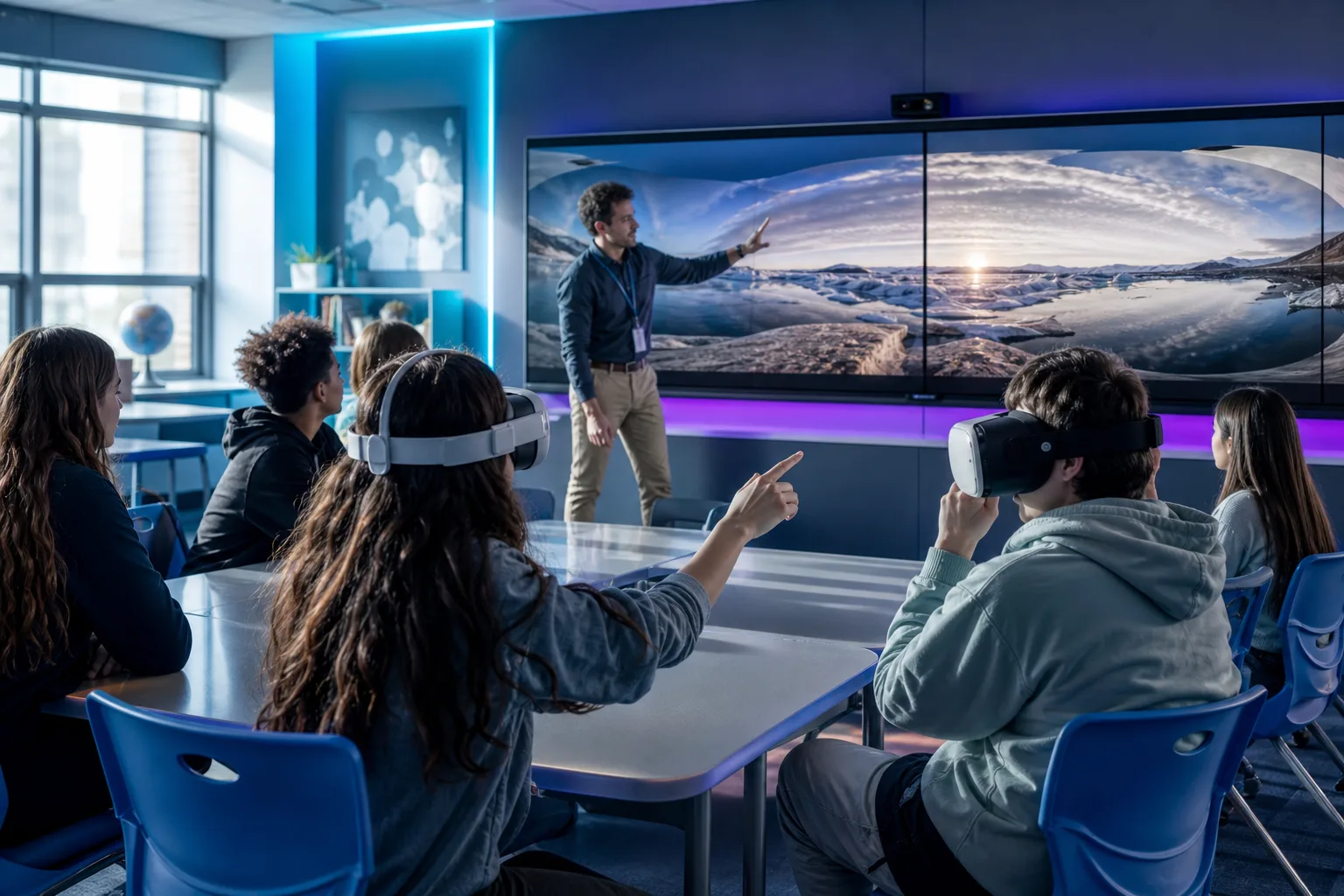
360Worlds runs in the browser on computers, tablets, phones and interactive whiteboards — no specialist hardware required.
Full VR & XR support
Every world also runs in VR & XR headsets. On headsets, use the class code to join — QR codes and share links are best kept for phones, tablets and computers.
FAQ
Setting up your accounts
Ready to get everyone exploring?
Compare plans and pick the right fit for your household, classroom or school.
- No pupil emails needed
- Works on any device
- VR & XR ready